How to Write a Price List Your Chatbot Can Actually Use (CSV and Google Sheet Template)
One row per variant, one fact per column, and the names customers really type. A CSV and Google Sheet template your AI reply bot can quote from.
In this article
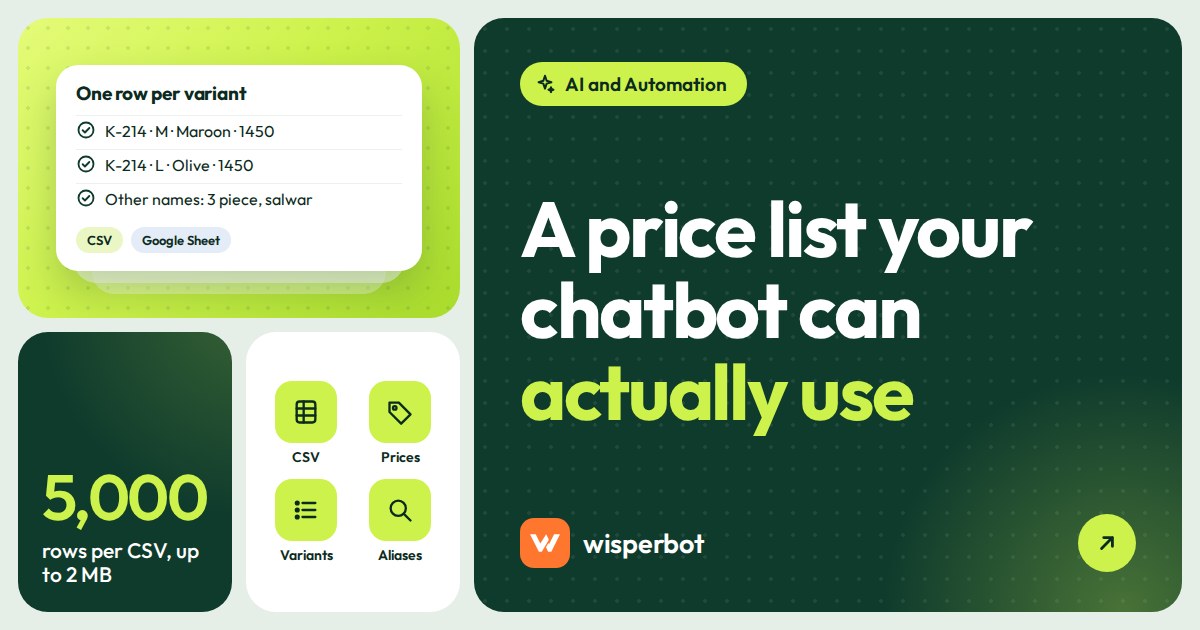
A price list your chatbot can actually use is a plain table with one row per sellable variant, one fact per column, and the names customers really type. Save it as a CSV or keep it in a Google Sheet, with columns for product name, variant, price, sale price, stock and a column of other names. Wrong prices from a chatbot usually trace back to the sheet, not the AI, so an hour spent on the layout saves weeks of corrections.
Key takeaways
- Use one row per variant (each size and colour that has its own price or stock), not one row per product.
- Keep one fact per column. Prices are plain numbers, with the currency in the column header.
- Add an "other names" column for the words customers use: "3 piece", "salwar", "punjabi", "panjabi".
- In WisperBot, the Prices and live data step takes a CSV file or a Google Sheet link: a CSV with a header row, up to 2 MB and 5,000 rows.
- Update the sheet on a fixed day, and the moment a sale starts or ends.
What should a chatbot price list contain?
At minimum: a product name, the variant, the price, and whether it is in stock. Add a sale price with an end date, an "other names" column, and a short notes column for anything a customer often asks about that product. Keep shop-wide rules such as delivery charges and return policy in your business details, not repeated on every row.
Here is the column template we suggest. Use these headers, or your own, as long as each one is clear to someone who has never seen your shop.
| Column | What goes in it | Example | Needed? |
|---|---|---|---|
| sku | Your own code, unique per row | PJ-104-BLU-L | Recommended |
| product_name | The name you use on your page, written the same way every time | Cotton Panjabi, Classic Cut | Yes |
| variant | Size, colour, weight or pack, in words | Blue, L | Yes, if there are variants |
| price_bdt | Regular price as a plain number | 1850 | Yes |
| sale_price_bdt | Sale price, blank if no sale | 1550 | Optional |
| sale_ends | Last day of the sale, as a date | 2026-10-31 | If there is a sale price |
| in_stock | yes / no, or a number | yes | Yes |
| other_names | Words customers use, separated by semicolons | punjabi; panjabi; kurta | Strongly recommended |
| notes | One or two short facts customers ask about | Fits true to size. Chest 42 in for L. | Optional |
| delivery_note | Only if this product differs from your usual delivery rules | Extra 60 taka outside Dhaka (heavy item) | Only if needed |
Illustrative example. Product names, codes and prices are placeholders.
Why one row per variant?
Because customers ask about a specific variant: "blue ta L size koto?" If a single row says "Sizes S to XXL, 1,650 to 1,950", the bot can only quote the range, and the customer hears the lowest number. One row per size or colour gives an exact price and says whether that item is in stock.
This is how four rows of the same panjabi should look:
| sku | product_name | variant | price_bdt | in_stock | other_names |
|---|---|---|---|---|---|
| PJ-104-BLU-M | Cotton Panjabi, Classic Cut | Blue, M | 1850 | yes | punjabi; panjabi; kurta |
| PJ-104-BLU-L | Cotton Panjabi, Classic Cut | Blue, L | 1850 | no | punjabi; panjabi; kurta |
| PJ-104-BLU-XXL | Cotton Panjabi, Classic Cut | Blue, XXL | 1950 | yes | punjabi; panjabi; kurta |
| PJ-104-WHT-L | Cotton Panjabi, Classic Cut | White, L | 1850 | yes | punjabi; panjabi; kurta; white panjabi |
Illustrative example.
Yes, it repeats the product name. That repetition is the point. Each row stands on its own, so the bot never has to work out which size belongs to which colour. If you sell 120 products with an average of six variants, that is 720 rows, well within the 5,000-row limit. The same rule holds for food: half plate and full plate are two rows, which is how we lay out the menu sheet in our guide to handling restaurant and cloud kitchen orders in DMs.
Naming rules that stop wrong answers
Many price mistakes trace back to how things are named and typed. These rules prevent most of them.
- Every product name is unique. If you have "Summer Kurti" and "Summer Kurti 2", the bot has to guess. Use "Summer Kurti, Floral Print" and "Summer Kurti, Plain Lawn".
- Prices are numbers only. Write 1850, not "1,850 tk", "Tk. 1850/-" or "1850 (offer)". Put the currency in the header: price_bdt, price_inr, price_aed.
- One fact per cell. Do not put "Blue/Black, M-XL" in one cell. Split it into rows.
- No merged cells, colours or comments. A CSV keeps none of them, and the bot cannot see that a red cell means "sold out". Write "no" in the stock column instead.
- No formula errors. If a column is calculated, check for #N/A or #REF! before you upload. Otherwise a customer may be told a dress costs "#N/A taka".
- One table per sheet. No title rows, totals or notes below the data. The first row is headers, every row after it is a product.
- Dates in one format. 2026-10-31 is unambiguous. 10/11/26 is not.
What goes in the other names column?
Every word a customer might use for that product that is not already in its name: spelling variants, local names, abbreviations and the English or Roman script version. For a Dhaka fashion page that means "3 piece", "three piece", "3pc" and "salwar kameez" for the same item. In our view this column does more for answer accuracy than any setting.
Good places to find these words: your own inbox. Search last month's messages for a product and note every way people wrote it. In Bangladesh you will find "panjabi" and "punjabi" side by side. In Pakistan, "lawn suit" and "unstitched". In India, "kurti" and "kurta set". Arabic-speaking customers may write a product name in Arabic script while your sheet is in English, so add the Arabic name too, and have a native speaker check it.
WisperBot's Smart Bot replies in the customer's language, including Roman Bangla, but the match between "3pc" and "Three-Piece Lawn Set" is far more reliable when you have written it down. Our guide to making a chatbot understand Roman Bangla has a test set you can reuse.
CSV or Google Sheet: which should you use?
Use a Google Sheet if prices or stock change more than once a week, or if more than one person updates them, because edits do not need a fresh upload. Use a CSV if your list is stable or exported from another system. In WisperBot, both are limited to 2 MB and 5,000 rows.
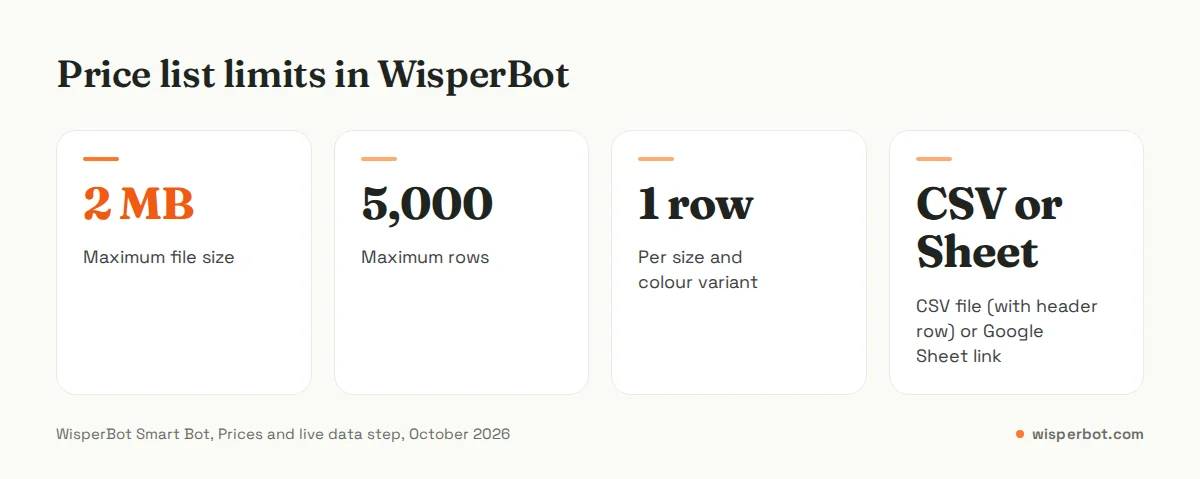
The app's own tip for Excel users is short: use Save as, then CSV. Two CSV details still trip people up. First, if your list includes Bangla, Hindi, Urdu or Arabic text, save it as UTF-8 (Excel offers "CSV UTF-8"), or the script turns into question marks. Microsoft notes that a UTF-8 CSV opens normally in Excel when saved with a byte order mark. Second, if a cell contains a comma, such as "Cotton Panjabi, Classic Cut", the CSV format standard (RFC 4180) wraps it in double quotes. Excel and Google Sheets do this for you when exporting; it only breaks when someone builds the CSV by hand.
If your products already live in an online store, you may not need a sheet at all. WisperBot's store connections and read-only lookups into your own system let the bot read prices and stock from the source instead. A sheet is the right choice for the many sellers who run from Facebook and Instagram with no store behind them.
How to add your price list in WisperBot
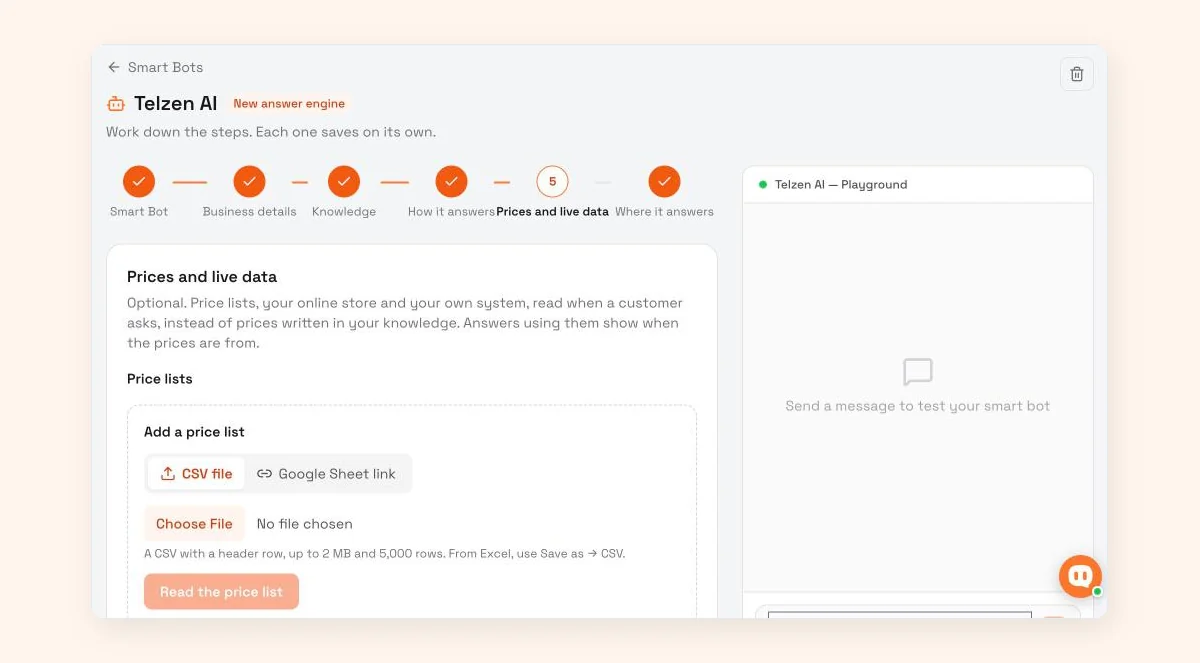
The Smart Bot setup has six steps: Smart Bot, Business details, Knowledge, How it answers, Prices and live data, and Where it answers. The price list goes in the fifth.
- Clean the sheet using the rules above. Delete title rows, merged cells and totals.
- Put shop-wide rules (delivery charges by area, payment methods, exchange policy) into Business details, not the sheet.
- In Prices and live data, add the CSV file or the Google Sheet link. The app asks for a CSV with a header row, up to 2 MB and 5,000 rows.
- In How it answers, start with Strict, so the bot answers prices only from your list and sends anything else to your team. The app marks Balanced as recommended; it is worth moving to once your list is clean.
- Test ten real questions from your inbox: two exact product names, three nicknames, two out-of-stock variants, one sale item, one product you do not sell, and one Roman Bangla message.
- Fix any wrong answer in the sheet, then retest.
The "product you do not sell" test matters most. A good setup answers "Sorry, we don't have that" or hands over. If it invents a price, read our guide on stopping an AI chatbot from making up prices.
Keeping it current: a weekly routine
A price list is only as good as its last update. Pick a day, and one owner.
Our suggestion: on your quietest evening of the week, mark sold-out variants as "no" rather than deleting them, so the bot can say "that size is finished" instead of "we don't sell that". Add new arrivals with their other names. Clear sale prices whose end date has passed. On a Google Sheet, name the version after each update in version history, so you have a dated snapshot to roll back to if an edit goes wrong.
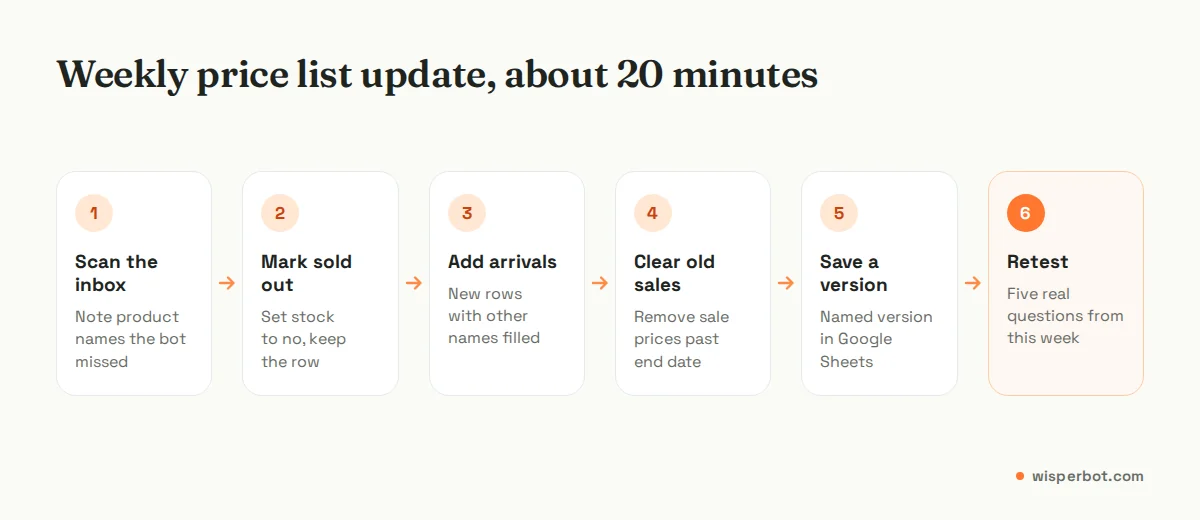
And outside the routine: the minute a flash sale starts or ends, update the sheet first and announce second. The worst DM you can get is a screenshot of your own bot quoting yesterday's offer price.
Where WisperBot fits
WisperBot, a reply-first inbox for WhatsApp, Instagram, Messenger and website chat, reads your price list in the Smart Bot's Prices and live data step when a customer asks, instead of relying on prices written into your knowledge. It answers "dam koto?" in seconds and in the customer's language, its price answers show when the prices are from, and it hands over to your team when the answer is not in your data. Learn more about the Smart Bot, or see how price replies work in practice in "Price koto?": answering price DMs automatically.
Frequently asked questions
What format should a chatbot price list be in?
A simple table saved as CSV, or kept in a Google Sheet, with one header row and one row per variant. Use plain numbers for prices, put the currency in the column name, and avoid merged cells, colours and notes below the table. In WisperBot the file can be up to 2 MB and 5,000 rows.
How many products can I put in a chatbot price list?
In WisperBot, up to 5,000 rows and 2 MB per CSV or Google Sheet. Because each variant gets its own row, count rows, not products. A shop with 300 products averaging eight variants needs 2,400 rows. If you are well over the limit, a store connection is usually a better fit than a sheet.
Should I put delivery charges in the price list?
Usually not. Delivery charges by area (inside Dhaka, outside Dhaka, by city) belong in your business details, so they are written once and the bot applies them to every product. Only add a delivery note on a product row when that item is an exception, such as a heavy or fragile product.
Is it OK to write prices with "tk" or commas in the sheet?
Avoid it. Write prices as plain numbers like 1850 and name the column price_bdt so the currency is clear. Text such as "1,850 tk" or "1850/-" makes it harder to compare and sort prices, and mixed formats across rows are a common reason for odd answers.
How often should I update my chatbot's price list?
At least weekly on a fixed day, and immediately whenever a sale starts or ends, a price changes or a popular size sells out. If stock moves faster than daily, a Google Sheet that staff edit directly, or a connected store, will serve customers better than a CSV you re-upload.
Sources
- IETF RFC 4180: Common Format and MIME Type for Comma-Separated Values (CSV) Files (October 2005)
- Microsoft Support: Opening CSV UTF-8 files correctly in Excel, checked October 2026
- Google Docs Editors Help: Find what has changed in a file (version history, named versions), checked October 2026
Last checked: 8 October 2026.