Messenger Auto Reply Setting: How to Set It Up for Your Facebook Page
Step-by-step setup for Messenger instant reply, away message, FAQs and keyword replies in Meta Business Suite, what each can't do, how to test, and when to use a bot.
In this article
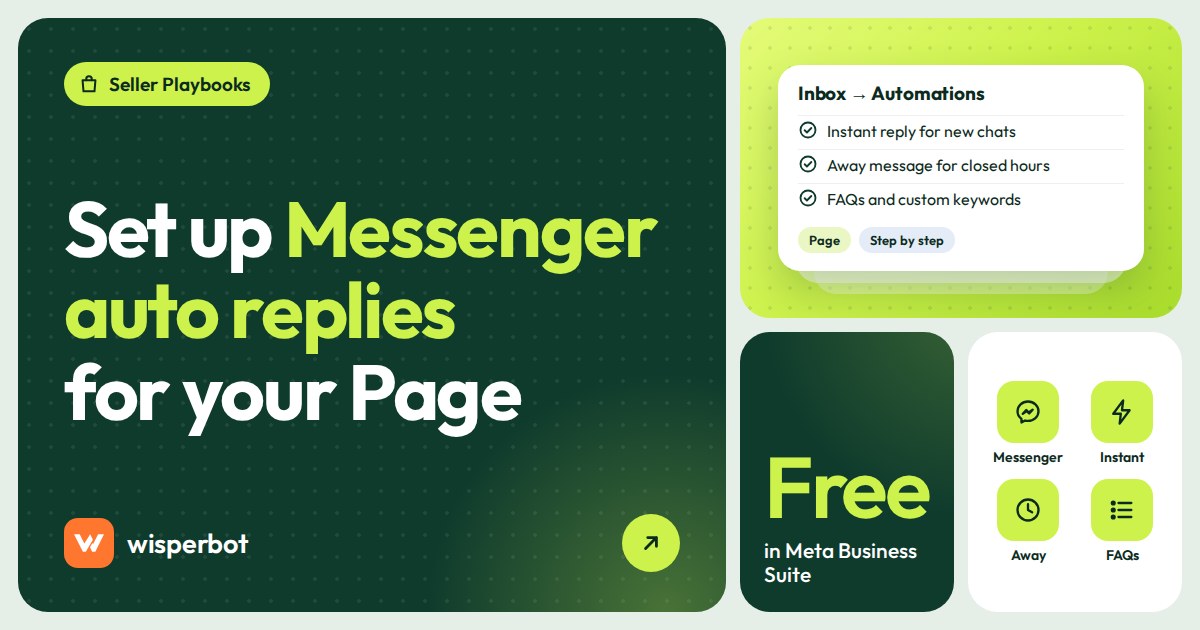
It's Sunday evening, you've just finished a 14-hour market stall in Banani, and your Page has 37 unread Messenger chats. Half of them only needed your delivery charge. The Messenger auto reply setting lives in Meta Business Suite: open the Inbox, choose Automations, and you can switch on an instant reply, an away message, frequently asked questions and keyword replies for your Facebook Page. Each takes a few minutes. This guide walks through every one, what it can't do, how to test it, and when to move to a bot that actually answers.
Key takeaways
- Messenger automations for a Page are in Meta Business Suite under Inbox, then Automations. They're free.
- Instant reply greets new conversations, the away message covers your closed hours, FAQs answer a few set questions, and custom keywords reply to exact phrases.
- Guides report that custom keywords are desktop-only, take up to five exact phrases and wait about 15 minutes for a person before sending.
- Meta doesn't count instant replies or away messages towards your Page's response rate, according to guides citing its rules.
- A Messenger auto reply bot connected through Meta's platform can answer real questions, but only within 24 hours of the customer's last message.
Where is the Messenger auto reply setting?
Open Meta Business Suite on desktop or in the app, select your Facebook Page, go to Inbox and choose Automations. That screen lists Meta Business Suite automated responses, including instant reply, away message, frequently asked questions and custom keywords. On mobile, guides describe the path as the Page inbox, then the menu, then Automations.
A note on accuracy. Meta renames and moves these screens often, and we couldn't verify its Help Centre pages directly on the day. The steps below follow setup guides published between July and September 2026, cross-checked against each other. If a button has a different name on your account, the logic will still hold.
Before you start, set your Page's hours. The away message depends on them, and buyers see them on your Page too. If Friday is different, enter Friday's hours separately. If you say 10 am to 10 pm and nobody picks up the phone after 8, say 10 to 8.
How to set up the instant reply
The instant reply goes out once, straight after someone starts a new conversation with your Page. It's the right place for a greeting, your reply hours and what to send you. It is not the place for your story, your founder's name or three lines of thanks.
- In Automations, choose Instant reply.
- Tick Messenger as the channel. If your Instagram account is connected, you can set a separate one there.
- Write the message. Keep it to two short sentences. Guides suggest staying well under 500 characters, and shorter reads better in a notification.
- Personalise it with the person's first name if you like.
- Save, then test it from a personal profile, not while logged in as the Page.
An instant reply we'd use for a clothing Page: "Hi [first name], thanks for messaging [Shop]. Send the product photo or code and we'll reply with price and sizes. We answer 10 am to 10 pm." It sets a time, asks for the detail you'll need, and doesn't pretend to be an answer.
How to set up the away message
The away message replies when a message arrives while you're marked away or outside your set hours. Guides note that when your Page is away, the away message takes priority over the instant reply, so a new customer at midnight gets the away message, not both.
- In Automations, choose Away message and tick Messenger.
- Set the schedule: when your Page should be treated as away. Match it to your real hours, including any prayer break or Friday closure you want covered.
- Write the message. Include the exact time you'll be back and one thing they can do now, such as sending the product code and size.
- Save and test outside your hours.
Our version: "We're closed now and back at 10 am. Send the product code and your size, and it'll be the first chat we answer." Scroll back through last week's night messages before you write yours. If a third of them are "delivery koto?", the charge belongs in the away message itself: "Delivery is Tk 70 in Dhaka, Tk 130 outside." That one line, sent at 11:40 pm, closes the sale that an "we'll reply soon" loses.
How to set up FAQs and keyword replies
These two answer specific questions, which makes them more useful than greetings. Both have narrow limits, and the keyword one has a timing quirk that surprises people.
Frequently asked questions
FAQs show as tappable questions when someone opens a chat with your Page. Tapping one sends your answer immediately. Pick the questions that start most chats. For a Dhaka clothing Page we'd go with delivery charge, bKash or cash on delivery, how to order, and where the shop is, in that order. Keep each answer to two or three lines with one link if needed.
Custom keywords
- On desktop, in Automations, choose Custom keywords and tick Messenger.
- Add the phrases that should trigger the reply. Guides describe a limit of five phrases, matched exactly and case-sensitive, and the same phrase can't be used in two automations.
- Write the reply and save.
- Remember the timing: guides report Meta waits about 15 minutes for a person to answer before sending the keyword reply. And if the instant reply or away message also matches, that one wins.
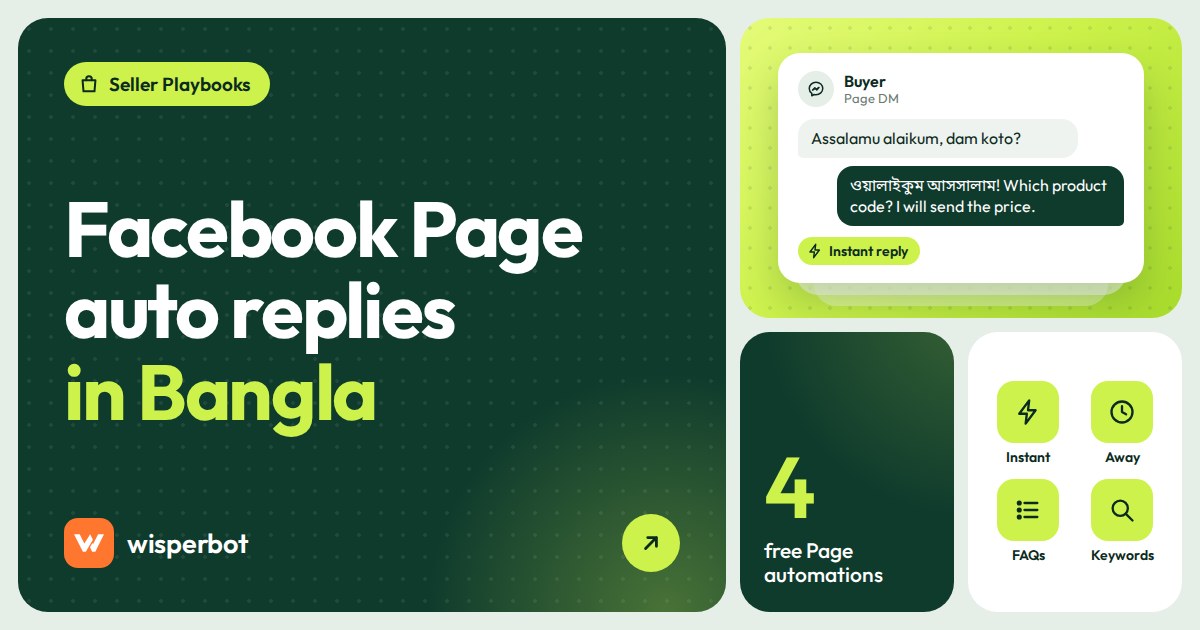
Keywords work for questions with a single fixed answer, such as "delivery charge", "bKash" or "address". They fall apart on price. "dam koto", "price?", "koto taka" and "how much" are four different strings to the matcher, you only get five, and none of them tells you which product the buyer is looking at.
What other Meta Business Suite automated responses are there?
Besides instant reply, away message, FAQs and custom keywords, guides list ready-made responses for your location, contact information and hours, which reply when someone asks for them, plus comment to message, which sends a Messenger reply to people who comment on your posts. Availability varies by Page, so some may not appear on yours.
Comment to message is worth a separate thought. Meta's rules for private replies to comments are tight, and a "check inbox" reply often loses the buyer. We cover that in our guide to replying to comments without losing buyers.
What can't Messenger auto replies do?
Meta's free automations send fixed text. They can't read a customer's message, tell which product a screenshot shows, check stock or follow a conversation over several turns. And guides citing Meta say instant replies and away messages don't count towards your response rate or response time, so they don't make your Page look faster.
| Automation | When it fires | Good for | What it can't do |
|---|---|---|---|
| Instant reply | Once, when a new conversation starts | Greeting, reply hours, what to send | Answer the question; doesn't count as a response |
| Away message | When the Page is away or outside set hours | Setting expectations overnight | Answer anything; doesn't count as a response |
| FAQs | When the customer taps a listed question | Three or four common questions with fixed answers | Handle questions typed in their own words |
| Custom keywords | When a message contains an exact phrase, after a short wait | Delivery charge, payment method, address | Catch spelling variations or know which product |
| AI reply bot via an inbox tool | On every message, on a schedule you choose | Price, size, stock, delivery, from your own data | Send automated replies after 24 hours; it needs correct data |
That response rate point matters more than people think. The "Typically replies within" line under your Page name is built from real replies. If your only fast reply is the instant reply, buyers still see how long a person took, and "within a day" under a Page selling Eid outfits is a reason to tap the next Page. Our guide to Facebook Page response rate and response time explains the calculation.
How do you test Messenger auto replies before going live?
Test from a personal Facebook profile that isn't an admin of the Page, so you see what customers see. Send a first message inside your hours and another outside them, then try each keyword with different capitalisation. Check the message on a phone, where long replies get cut off in previews.
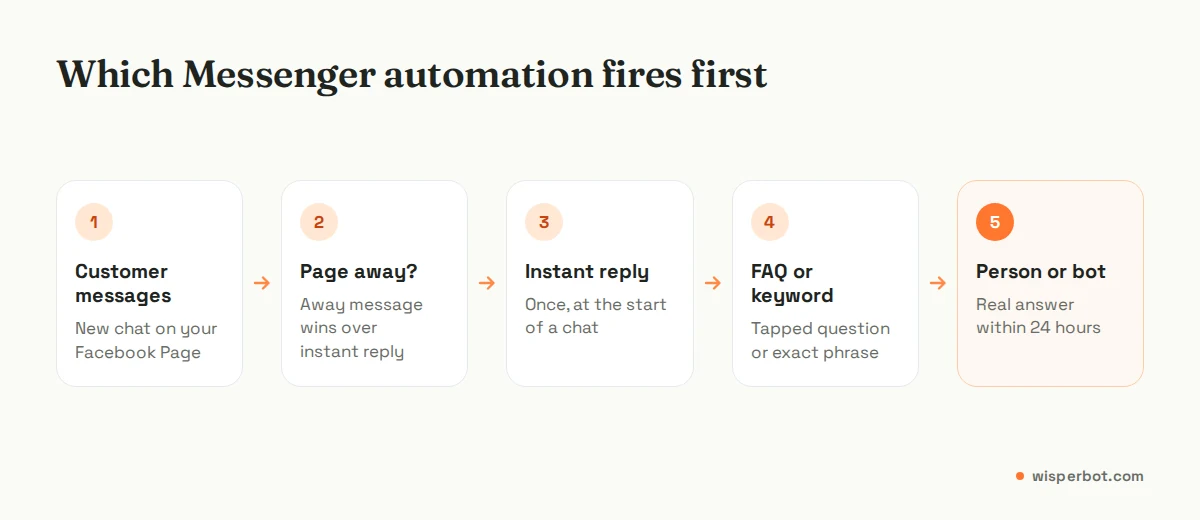
A test round we'd run in ten minutes:
- Message "hi" from a friend's account during your hours. You should get the instant reply only.
- Message again after a gap long enough to count as a new conversation, outside your hours. You should get the away message.
- Type each keyword exactly, then in capitals, then misspelt. Note which ones miss.
- Tap each FAQ and read the answer on a small phone screen.
- Reply as the Page within 15 minutes to one keyword message and check the keyword reply doesn't also go out.
- Write down the misses. Those are the questions a person, or a bot, needs to handle.
When is it time for a Messenger auto reply bot?
It's time when your inbox keeps filling with questions that have known answers, such as price, size, colour and delivery, at hours when nobody's replying. A Messenger auto reply bot connected through Meta's platform can read each message and answer from your information, within 24 hours of the customer's last message, and pass the rest to a person.
The 24 hours come from Meta's Messenger Platform policy: apps can send standard messages within 24 hours of the person's last message. After that, only a person can reply, for up to 7 days, using Meta's human agent tag. For a night bot that's plenty, since it answers in seconds.
Meta has its own option too. In June 2026 it announced Meta Business Agent, an AI agent for WhatsApp and Messenger that's free to start, with paid tiers to come. Guides say turning it on can pause your other inbox automations, so test it on a quiet week. If you also sell on WhatsApp, Instagram or a website, one inbox across all of them may suit you better. Either way, start with nights, not your whole day. Our after-hours AI replies guide explains why nights are the right first shift, and why Facebook sellers in Bangladesh lose orders at night shows what that's worth.
Where WisperBot fits
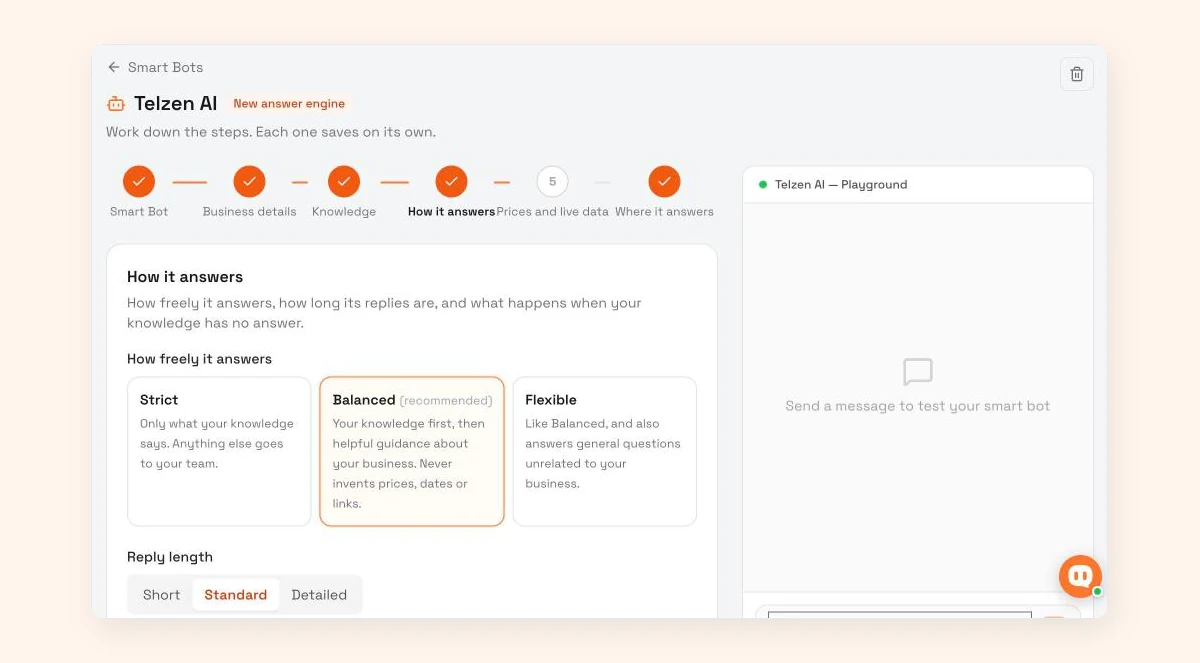
WisperBot, a reply-first inbox for WhatsApp, Instagram, Messenger and website chat, connects your Facebook Page and lets a Smart Bot answer Messenger chats from your own knowledge and price list. You choose how freely it answers: Strict ("Only what your knowledge says. Anything else goes to your team."), Balanced, which the app recommends, or Flexible. None of them invents prices. AI answering can be Off, Always on or Scheduled, with time windows per day and a timezone. Any chat can switch to Human from the inbox or the mobile app. See the Smart Bot page.
Frequently asked questions
How do I set up auto reply on my Facebook Page Messenger?
Open Meta Business Suite, select your Page, go to Inbox and then Automations. Choose Instant reply, tick Messenger, write a short greeting and save. Add an Away message with your closed hours, then FAQs for your top questions. Test everything from a personal profile that isn't a Page admin.
Where is the Facebook Page auto reply setting on mobile?
In the Meta Business Suite app, open your Page's inbox, tap the menu, then Automations. Instant reply and away message can be set from there. Guides report that custom keywords can only be set on desktop, so use a computer for those. Menu names can differ by app version.
Why is my Messenger instant reply not working?
Common reasons: you're testing from an account that manages the Page, the conversation isn't new so the instant reply already went out, the away message is taking priority because the Page is away, or Meta Business Agent is switched on and has paused other automations. Test again from a friend's profile.
Do Messenger auto replies cost anything?
No. Meta Business Suite automations are free, and Meta doesn't charge per message on Messenger. You pay only if you use a third-party inbox or bot, or Meta's own AI agent once its paid tiers arrive. WhatsApp is different: on the API, Meta charges per delivered message once a number passes 1,000 free service messages in a month.
Can a Messenger bot reply after 24 hours?
Not with an automated message. Meta's Messenger Platform policy allows standard messages within 24 hours of the customer's last message. After that, a person can still reply for a limited time using the human agent tag, but the reply must come from a real person on your team.
Sources
- NapoleonCat: Facebook automated responses in Meta Business Suite (July 2026, updated August 2026)
- InstantDM: Messenger autoresponder, instant reply, away message and keywords (September 2026)
- CreatorFlow: Meta's built-in automation and custom keyword limits (August 2026)
- Meta for Developers: Messenger Platform policy overview (24-hour standard messaging)
- Meta for Developers: Send API reference (human agent tag)
- WhatsApp Business blog: Introducing Meta Business Agent (3 June 2026)
Last checked: 12 October 2026.