How to Switch Website Chatbots Without Losing the Thread
Plan a website chatbot switch with knowledge, open conversations, branding, testing, and recovery covered. Avoid assuming that visitor history transfers.
In this article
Changing a website chatbot looks simple from the outside. Remove one embed, add another, and check the page. The harder questions sit behind it: which knowledge moves, who handles open conversations, and what happens to visitor history?
If your reason for switching includes branding, define that requirement before the migration. WisperBot lets every tier, including Free, change the footer company name so the tag can read “Powered by Your Brand”.
That is a useful starting point. A careful switch also needs a plan for information, people, and the website itself. A new footer name does not automatically transfer the old service's data or settings.
Inventory what the current chatbot does
Start with the live experience rather than the original project brief. List the pages where chat appears, the questions it answers, the information it collects, and the people who receive handoffs.
Check whether the existing bot uses static documents, a website crawl, live integrations, or scripted flows. These are different things to rebuild.
Record the branding surfaces too. The footer tag may be the immediate reason for switching, but the header, welcome copy, and launcher can also affect how familiar the new window feels.
Do not copy an old configuration without reviewing it. A migration is a useful chance to remove obsolete policies and questions the business no longer needs to ask.
Decide what happens to history
Conversation history is not the same as knowledge. A delivery policy can be added as a source; a customer's private transcript needs a suitable data-handling and access process.
Do not assume that another vendor's transcripts, visitor tokens, identities, or integrations will import automatically. Establish what each service supports and what the business is authorised to retain or transfer.
Keep unresolved conversations with a responsible person during the transition. A customer who asked for help yesterday should not be forgotten because a new widget went live today.
If history cannot be transferred in the intended way, plan how staff will access the required records through the existing system. Do not create a public archive of customer conversations as a shortcut.
| Migration area | Decision before switching | Verification |
|---|---|---|
| Website placement | Pages and widget rules | Intended pages show the new widget |
| Knowledge | Current sources to rebuild | Approved questions receive useful answers |
| Open conversations | Staff owner and follow-up route | No unresolved request loses ownership |
| Visitor history | Supported handling and identity | No assumed cross-vendor transfer |
| Branding | Footer name and introduction | Correct identity appears on the site |
| Recovery | How to restore the previous embed | Procedure is documented and available |
Rebuild the smallest useful knowledge set
Bring across the information the new bot needs for its first job. Check the source dates and remove contradictions before adding more.
For a shop, a focused set might include delivery and returns. For a service provider, it might include service areas and enquiry steps. These are examples, not mandatory categories for every business.
Use the same test questions against the old and new setups where possible. This makes differences easier to interpret. A visually better widget is not a successful migration if it gives worse answers to the questions customers ask most.
Test unsupported requests too. The new bot should explain its limit and offer the intended human route rather than inheriting an old habit of guessing.
Set your brand before the public switch
In WisperBot, go to Chatbot Widget, choose the widget, and open Widget Setup, Appearance. Set Footer company name to the public business name.
That value appears after “Powered by” on every tier. A blank field falls back to WisperBot, so enter the name explicitly. The free control changes the text tag; a custom launcher image remains a separate paid feature.
Review the header and welcome copy at the same time. Customers should not see an old brand in the greeting and a new one in the footer.
For the full configuration sequence, use the setup walkthrough. Keep the migration plan focused on what changes for this website.
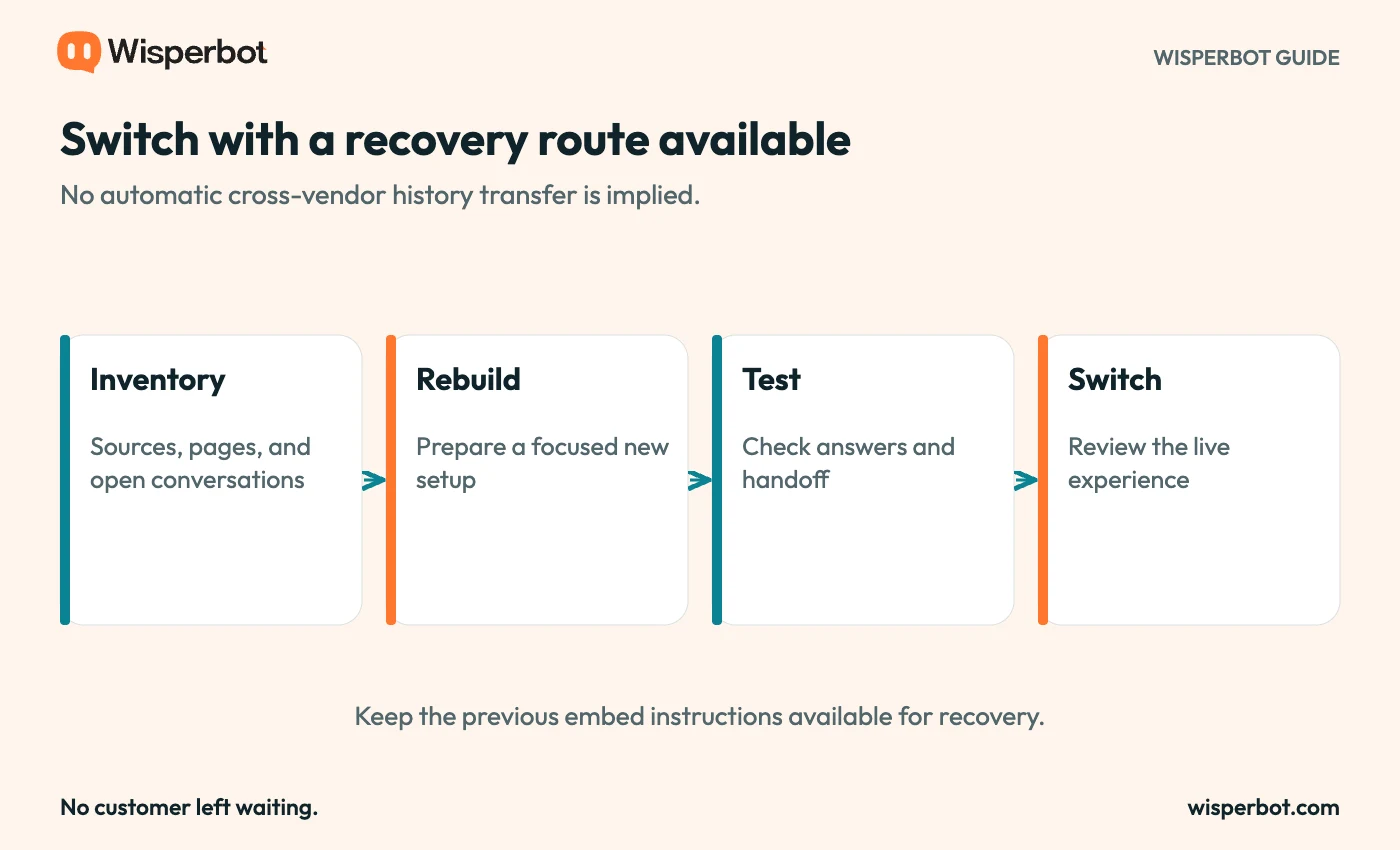
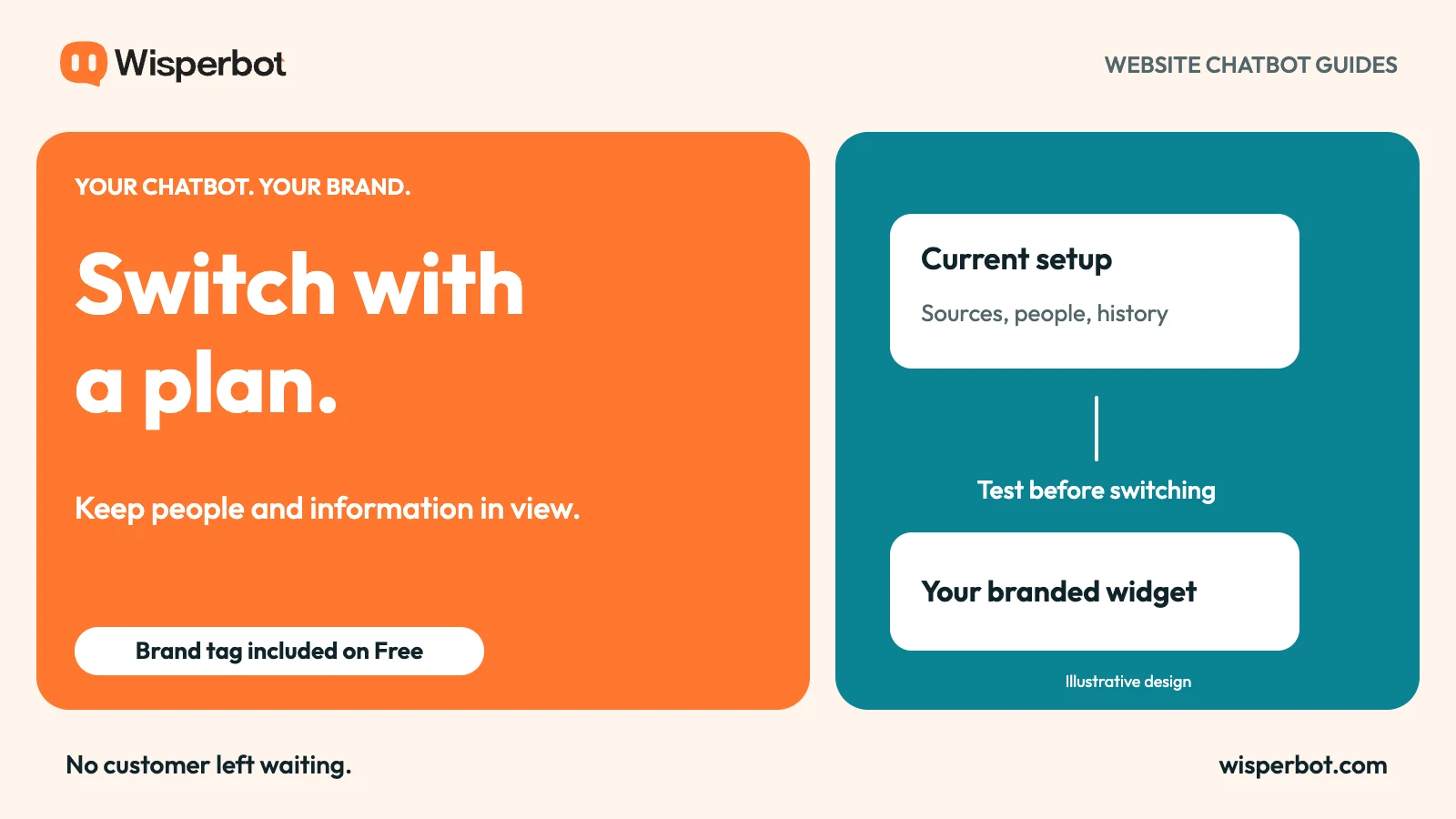
Suggested migration sequence. Cross-vendor history transfer is not assumed.
Test in a controlled environment
Use a staging or limited test page where your website setup allows it. Inspect the new widget without interrupting the existing customer route.
Check desktop and mobile. Confirm that the launcher does not cover important controls, that the correct bot answers, and that the footer carries the intended name.
Run separate visitor sessions to check conversation isolation. If the website supplies logged-in identity, have the integration owner verify the relevant login and logout behaviour rather than treating an anonymous test as sufficient.
Complete a human handoff. Staff should know which inbox to monitor and how the new conversation differs from the old workflow.
Switch with a recovery plan
Choose a time when someone can inspect the live site and respond to problems. Remove or disable the old embed according to the website's deployment process, then enable the new one.
Check that two launchers are not competing on the same page. Open a fresh session, ask a test question, and send a staff reply back to the visitor.
Keep the previous embed instructions available for a controlled recovery if needed. Avoid changing several unrelated website systems during the same switch; that makes a problem harder to diagnose.
Record what was changed and where. The next person should be able to identify the live widget without searching through old messages or guessing which snippet is active.
Review the first conversations
Look for missing sources, misleading expectations, and handoffs that reach nobody. Correct those issues before expanding the new bot's scope.
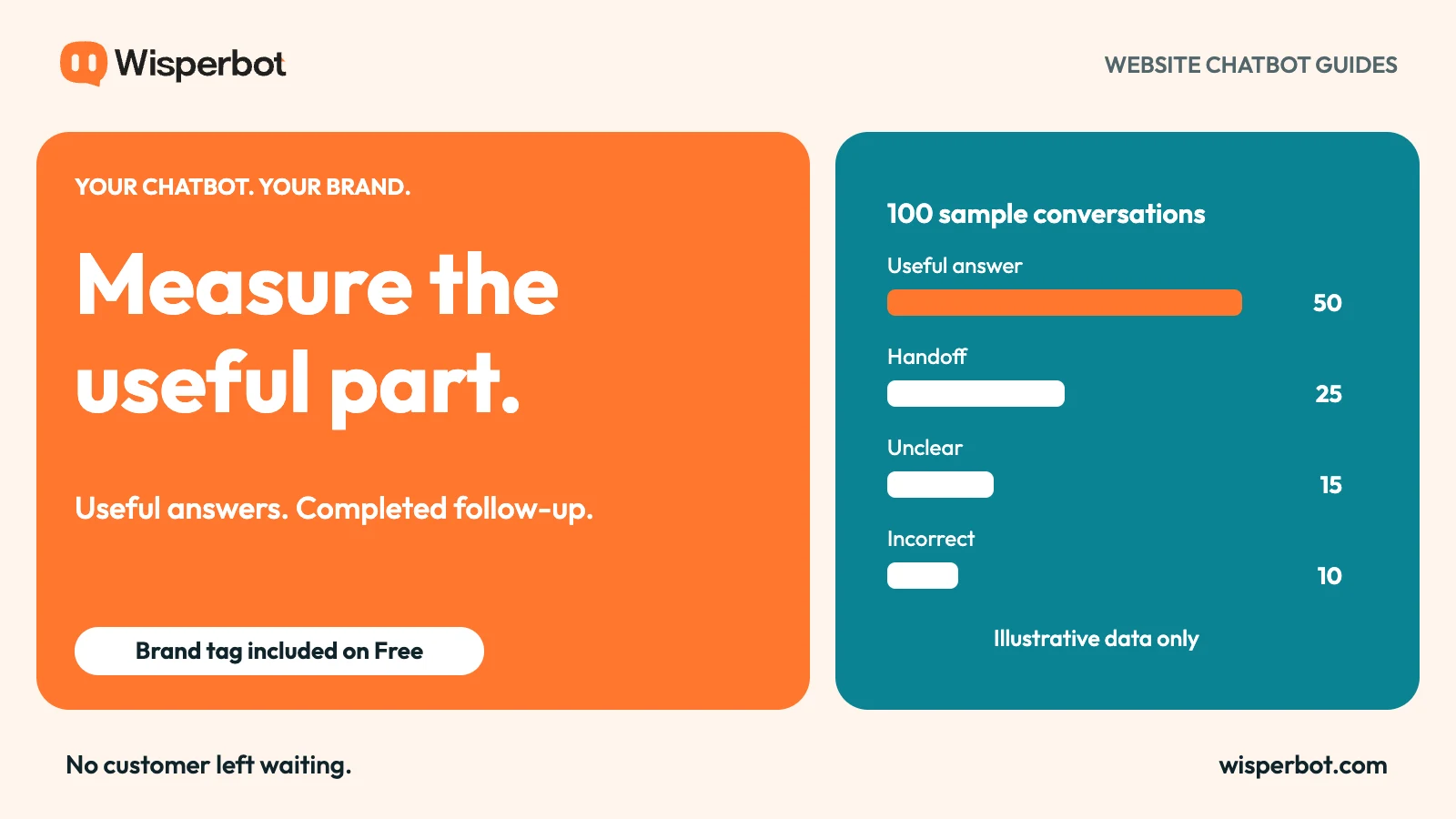
Compare like-for-like questions rather than declaring the migration successful because the new widget received more clicks. A placement change or a busy promotion can alter volume independently of answer quality.
Use the measurement guide to organise that review. The brand tag is easy to inspect; the quality of the switch appears in the conversations that follow.
Questions about switching chatbots
Will customer history move automatically?
Do not assume so. Cross-vendor history, identity, and integration transfer depend on supported processes and should be verified separately.
Can the new WisperBot widget carry our name on Free?
Yes. The footer company-name field is editable across tiers. It changes the name within the standard “Powered by” tag.
Should we copy every old knowledge source?
Review them first. Start with current information needed for the chosen job, then add scope after testing. Outdated content does not become more reliable because it moved to a new chatbot.
Explore WisperBot website chat, then plan the switch around the customers and staff who will use it.