Facebook Page Inbox Not Showing Messages? 9 Fixes That Work
Missing Page messages are usually filtered, filed in Done or Spam, hidden by Page access or routed to another app. Nine fixes, in the order to try them.
In this article
A buyer comments "inbox check koren" under your post at 9:20 pm, you open the Page inbox, and there's nothing there. When a Facebook Page inbox is not showing messages, the cause is usually one of nine things: you're looking in the wrong inbox, a filter or folder is hiding the chat, a new buyer is sitting in message requests, your Page access doesn't include messages, another connected app has control of the conversation, notifications are off, the app is out of date, Meta has an outage, or the Page is restricted. Work through them in that order and most sellers find the missing chats in ten minutes.
Key takeaways
- Check the obvious first: are you on the Page's inbox, not your personal Messenger, and is an "Unread" or other filter switched on?
- Look in the Done and Spam folders. Chats marked done or filtered as spam don't show in the main list.
- If you connected a chatbot or another inbox tool, Meta's conversation routing decides which app controls each chat. Check it.
- Meta's menus differ between the Facebook app, desktop and Meta Business Suite, and change often. Labels below may not match your screen exactly.
- Check Meta's business status page before you change any settings during a sudden, Page-wide problem.
Why is my Facebook Page inbox not showing messages?
Most often the messages exist but you're looking in the wrong place: your personal Messenger instead of the Page, a filtered view, or the Done or Spam folder. Less often, your Page access doesn't include messages, a connected app controls the conversation, notifications are blocked, or Meta has a service problem. Rule out the simple causes first.
A quick test tells you which kind of problem you have. Ask a friend to send your Page "test 1" from their own account. If it arrives, the inbox works and the missing chats are filtered, filed or controlled by something else. If it doesn't arrive anywhere, look at access, routing, restrictions or an outage.
| What you see | Most likely cause | Fix to try first | Who can fix it |
|---|---|---|---|
| Some chats missing, new ones arrive | Filter, Done or Spam folder | Clear filters; open Done and Spam | Anyone with message access |
| Only you can't see messages; a teammate can | Your Page access or wrong profile | Switch to the Page; ask an admin to check your access | Someone with full control of the Page |
| Bot or tool replied, but chat isn't in Business Suite | Another app controls the conversation | Check conversation routing and connected apps | Page admin |
| Messages arrive late or with no alert | Notifications or battery saver | Turn on notifications; allow background activity | You, on your phone |
| Nothing loads for anyone | Outage, old app or restriction | Check Meta's status page; update app; try desktop | Usually Meta |
Where do I find my Facebook Page inbox?
Your Facebook Page inbox is in Meta Business Suite (on desktop or the Meta Business Suite app) under Inbox, and in the Facebook app when you switch to your Page's profile and open its messages. Your personal Messenger is a separate inbox. If you manage several Pages, check the Page selector shows the right one.
This trips up more sellers than any setting. You switch to your personal profile to reply to a cousin, forget to switch back, and the shop's chats seem to vanish. On desktop, Meta Business Suite at business.facebook.com tends to be the most reliable view. Meta keeps moving menus, so if a name below doesn't match, look for the closest equivalent.
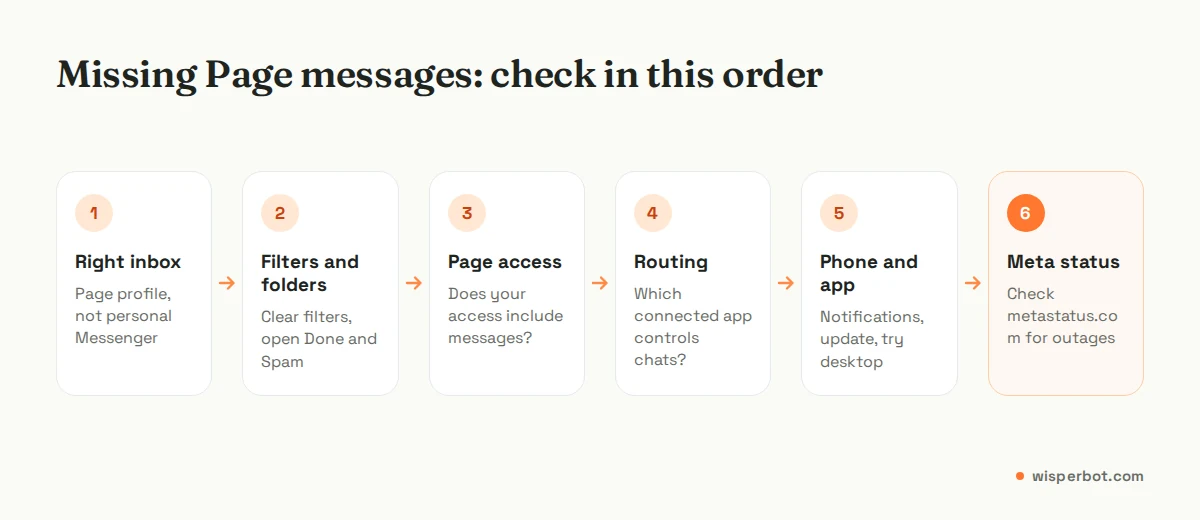
9 fixes when Facebook Page messages are not showing
1. Make sure you're on the Page, not your profile
Switch to the Page profile in the Facebook app, or open Meta Business Suite and pick the Page at the top. If your business has more than one Page, or Facebook and Instagram accounts linked separately, confirm you've selected the one the buyer messaged.
2. Clear filters and check Done and Spam
Business Suite's inbox lets you filter by unread, labels and other options, and it keeps separate Done and Spam folders. A chat someone marked done yesterday won't sit in the main list today. Clear any active filter, then open Done and Spam. If a real buyer is in Spam, move them back so future messages land properly.
3. Check message requests
Messages from people who haven't messaged you before can be held as requests, depending on the view and the app. In Business Suite most new buyer chats arrive in the main inbox, but if you're checking from Messenger, look in message requests and its spam section too.
4. Confirm your Page access includes messages
On Pages using Meta's newer Page setup, people can be given full control or access to specific tasks. If your access doesn't include messages, you won't see them, even though the owner can. Ask someone with full control to check your access in the Page's settings and add messaging. Meta's labels for this have changed several times, so search Page settings for "access" if you can't find it.
5. Check which app controls the conversation
If you connected a chatbot, a CRM or another inbox to your Page, Meta's conversation routing decides which app may reply to each chat. Meta's developer documentation says routing is set in the Page's settings, with a default app that controls idle conversations, and that the Business Suite inbox can be one of those apps. It also notes the inbox takes control if you move a message to its Main folder or reply to a chat it doesn't control.
In practice: a chat a bot is handling may not appear where your team expects. Decide which tool is your team's main inbox, set it as the default, and remove apps you no longer use. We'd rather have one inbox everyone trusts than two that each hold half the chats, and we say that as a company that sells one of them. Meta replaced the older "handover protocol" with conversation routing, so old guides may describe settings you can't find.
6. Turn notifications back on
Sometimes the messages are there; you just weren't told, and you find them at 8 am with "hello?" sent three times. Check notification settings inside Meta Business Suite and the Facebook app, then in your phone's settings. On many Android phones, battery saver stops apps refreshing in the background. Allow background activity for the app you use for the shop.
7. Update the app, or try desktop
An outdated app can fail to load threads or show old ones. Update Meta Business Suite and Facebook, log out and back in, and if the phone still shows nothing, open business.facebook.com in a browser. If the chats appear on desktop, the problem is the phone app, not your Page.
8. Check for a Meta outage
Meta publishes a business status page at metastatus.com covering Meta Business Suite, Ads Manager, the WhatsApp Business API and other business tools. If it shows a problem, wait rather than changing settings; changes made during an outage are hard to undo.
9. Check whether the Page is restricted
If your Page has broken Meta's rules, some features, including messaging, can be limited. Look for account status or quality notices in Meta Business Suite and follow any appeal steps Meta offers. Also ask a friend whether they can see a Message button on your Page at all. If they can't, messaging may be switched off or restricted.
Why is Meta Business Suite inbox not working on my phone?
When Meta Business Suite's inbox is not working on your phone but works on desktop, the usual causes are an outdated app, a stuck login, blocked background activity or a weak connection. Update the app, log out and back in, allow background data, and clear its cache on Android. If desktop fails too, check Meta's status page.
Sellers in Bangladesh often run the shop from one phone on mobile data. If chats load slowly in the evening, test on Wi-Fi before assuming Meta is at fault. And don't keep three Meta apps logged into the Page on one phone if you don't need to; it makes it harder to tell which one is misbehaving.
How to stop losing Page messages again
Missing messages are rarely a one-off. The Page that lost chats in Spam this week will lose them again next month unless someone owns the inbox. Once you've found them, put a small routine in place:
- Pick one main inbox for the team and set it as the default app in conversation routing.
- Agree what "Done" means. Only mark a chat done when the buyer has an answer or the order is confirmed.
- Check Spam once a day, at a fixed time, such as 10 am.
- Give every helper their own access with messaging included, rather than sharing one login.
- Use labels such as "price asked", "order pending" and "complaint", so nothing waits unseen. Our guide to labels, assignment and notes for small teams has a starter set.
Missed chats cost you twice: the order, and your Page's response figures. How Meta calculates response rate and the "Typically replies within" line buyers see is explained in our guide to Facebook Page response rate and time.
Where WisperBot fits
WisperBot, a reply-first inbox for WhatsApp, Instagram, Messenger and website chat, brings Page messages into one shared inbox with assignment, labels and internal notes, and a Smart Bot that can answer common questions before a person takes over. Like any connected tool, it works alongside Meta's conversation routing, so pick one main inbox for your team rather than replying from two places. If your problem is just finding chats in Business Suite, the fixes above are enough; if it's that too many chats arrive for one person, compare Meta Business Suite inbox vs a team inbox or set up Messenger auto replies first.
Frequently asked questions
Why can't I see messages on my Facebook Page but my partner can?
Usually your Page access doesn't include messages, or you're looking from your personal profile rather than the Page. Ask the person with full control to check your access in the Page's settings and add messaging, then switch to the Page profile or open Meta Business Suite and select the right Page.
Where do deleted or archived Page messages go?
Chats marked done move to the Done folder in Meta Business Suite's inbox, and filtered chats may sit in Spam. Both can be opened and moved back. A conversation actually deleted from the Page inbox generally can't be restored there, so mark chats done rather than deleting them.
Can a chatbot hide messages from my Page inbox?
It can change where they appear. With conversation routing, the app that controls a chat is the one that replies, and Meta's documentation says Business Suite's inbox takes control when you move a chat to its Main folder or reply. Check routing settings and remove connected apps you no longer use.
How do I know if Facebook Messenger is down for businesses?
Check metastatus.com, Meta's status page for business products such as Meta Business Suite, Ads Manager and the WhatsApp Business API. If it reports a problem, wait before changing settings. If it shows no issue, test with a message from a friend and work through access, routing and app updates.
Do missed Page messages affect my response rate?
They can. Facebook shows buyers a response-time estimate such as "Typically replies within minutes", based on how quickly your Page has answered recent messages, and Meta's API exposes that displayed response time. Slow or missing replies push it the wrong way. Finding hidden chats fast protects the order and the estimate.
Sources
- Meta for Developers: Conversation Routing (replaces handover protocol; Business Suite inbox as a connected app)
- Meta for Developers: Handover Protocol (older routing model)
- Meta: Status and outages of Meta business products
- Meta for Developers: Graph API Page reference (displayed message response time)
- TechCrunch, 15 June 2015: Facebook Pages can now show how quickly they respond to customers' messages
Last checked: 12 October 2026.