How to Replace the Company Name in a Chatbot Tag
Replace the default company name in your chatbot tag with your own. Follow the WisperBot steps, available on every tier, and check the result on your site.
In this article
The wording is easy to overlook until the website goes live: “Powered by” followed by the chatbot supplier's name. If you want that space to carry your own business name, check whether the product lets you edit the tag or only change the window's colours.
WisperBot gives every tier, including Free, an editable Footer company name field. Change the default name and the website chatbot displays “Powered by Your Brand”. The standard prefix remains. Your company name replaces the supplier name in that text.
This is a small setting with a clear job. It helps the chat window belong to the business whose customers are using it.
Three requests that often get mixed together
When someone asks to “remove chatbot branding”, they might mean one of three things: replace the supplier's name, hide the entire footer, or replace every supplier asset throughout the service.
Only the first describes WisperBot's free brand-tag control. The distinction matters because an editable name does not automatically include a custom launcher icon or a branded login domain.
Look at the actual surface you want to change. If the issue is the name at the bottom of the chat window, you can solve that specific problem without treating it as a complete software rebranding project.
| Request | Result to look for | WisperBot brand-tag scope |
|---|---|---|
| Replace the supplier name | “Powered by” uses your business name | Available on every tier |
| Remove the whole footer | No footer line appears | Not implied by editing the name |
| Upload a launcher image | A different icon opens chat | Separate paid-plan feature |
| Rebrand the staff dashboard | Internal screens use another identity | Separate requirement |
Choose the name before you open settings
Use the same business name visitors see in your website header, receipts, and support messages. If those surfaces use different names, the footer is a useful reminder to settle the inconsistency.
A trading name can be easier to recognise than a long company registration name. An agency building the widget for a client should agree the public name with that client first. The developer's agency name is not automatically the right name for the customer's support experience.
Avoid putting a sentence, phone number, or sales offer in this field. It is a company-name setting. The welcome message and website content are better places to explain what your business offers.
There is also no need to add “Powered by” yourself. WisperBot supplies that wording. Entering it again would repeat the phrase in the visitor-facing tag.
Change the brand tag in WisperBot
Open Chatbot Widget and select the relevant widget. Go to Widget Setup, then the Appearance tab. Locate Footer company name, replace WisperBot with your business name, and save the form.
For example, entering “Your Brand” produces “Powered by Your Brand”. The example is only a demonstration of the field's behaviour; use your actual customer-facing business name.
The setting accepts a company name of up to 128 characters. That is a technical limit, not a design target. A much shorter name is usually easier to read in a narrow chat window.
Do not clear the field expecting the tag to disappear. When no company name is supplied, the widget uses WisperBot as its fallback. Enter the intended name explicitly.
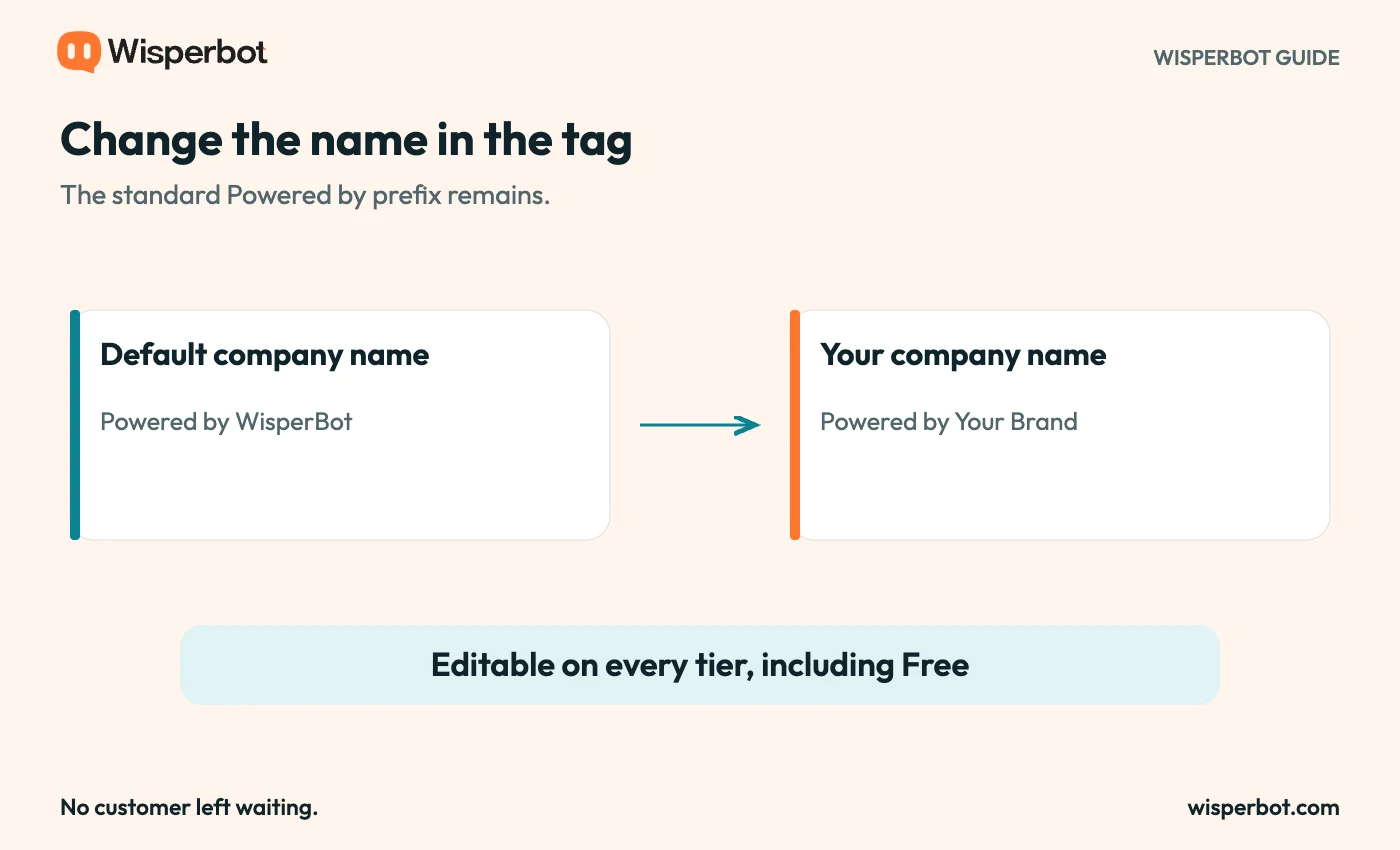
The company name changes; the standard “Powered by” prefix remains. Illustration, not a product screenshot.
Check the result outside the settings screen
First, open the website where the widget is embedded. The saved form is only one part of the journey. The public chat window must receive and display the new value.
Try a fresh browser session if the page still shows the previous name. Reload the page and check that you are looking at the correct website and widget. Businesses with staging and production sites can easily inspect one while editing the other.
Next, test on a phone. A long name can wrap or crowd nearby content even when it looks comfortable on a desktop. Read it at normal size rather than zooming in until it looks acceptable.
Finally, send a harmless test question and follow the conversation to a human reply. The footer should remain part of one coherent customer experience, alongside the header, greeting, and team identity.
What to do if the wrong name still appears
Start by checking which widget you edited. A site with multiple brands or environments may have more than one widget configuration. The footer on one does not prove that every other widget has changed.
Confirm that the form saved successfully and that the field contains the name rather than a blank value. Then inspect the embed used by the page. An old integration can point to a different widget from the one you intended to update.
If the problem persists, collect the page address, the expected name, and a screenshot that contains no customer conversation. Share those details with your administrator or support contact. Do not post session tokens or private visitor messages in a public support request.
This is a better troubleshooting sequence than adding CSS to cover the footer. A visual patch can hide the symptom while leaving the underlying configuration wrong.
Bring the rest of the introduction into line
Once the tag is correct, read the first screen as a visitor. A header that says “Support”, a welcome message that names an old brand, and a footer with the new name still feel unfinished.
Keep the welcome specific. A shop might offer help with delivery and returns. A consultancy might explain how to ask about services. Neither needs to introduce a large feature list before the customer has asked a question.
Set expectations for human help, too. A branded bot should not suggest a person is typing when the reply comes from AI. Clear identity and a realistic next step are more valuable than trying to make every message seem human.
For a broader review, follow the chatbot brand-voice guide. If you are setting up from scratch, use the complete setup walkthrough.
Common questions about the chatbot footer
Do I have to upgrade to change the company name?
No. WisperBot makes the footer company-name field available on Free as well as paid tiers. Other appearance features can have separate requirements.
Can I write any footer sentence I want?
The control is intended for a company name. It changes the name after the standard “Powered by” prefix, rather than providing an unrestricted footer editor.
Is the footer the same as the launcher icon?
No. The footer is text inside the chat window. The launcher is the icon used to open it, and custom launcher images are a separate paid entitlement.
Open your WisperBot widget, set the name customers already know, and check it on the live page. That is the whole purpose of this setting: a small piece of your website should carry your name.